Exness EA: Expert Advisors on MT4 and MT5, VPS and Setup
Can you use an EA on Exness? Yes, on MT4 and MT5 desktop only. Platforms that support EAs, how the free Exness VPS works, setup steps and account execution types.
This site contains affiliate links. We may earn a commission if you sign up through our links. How we research
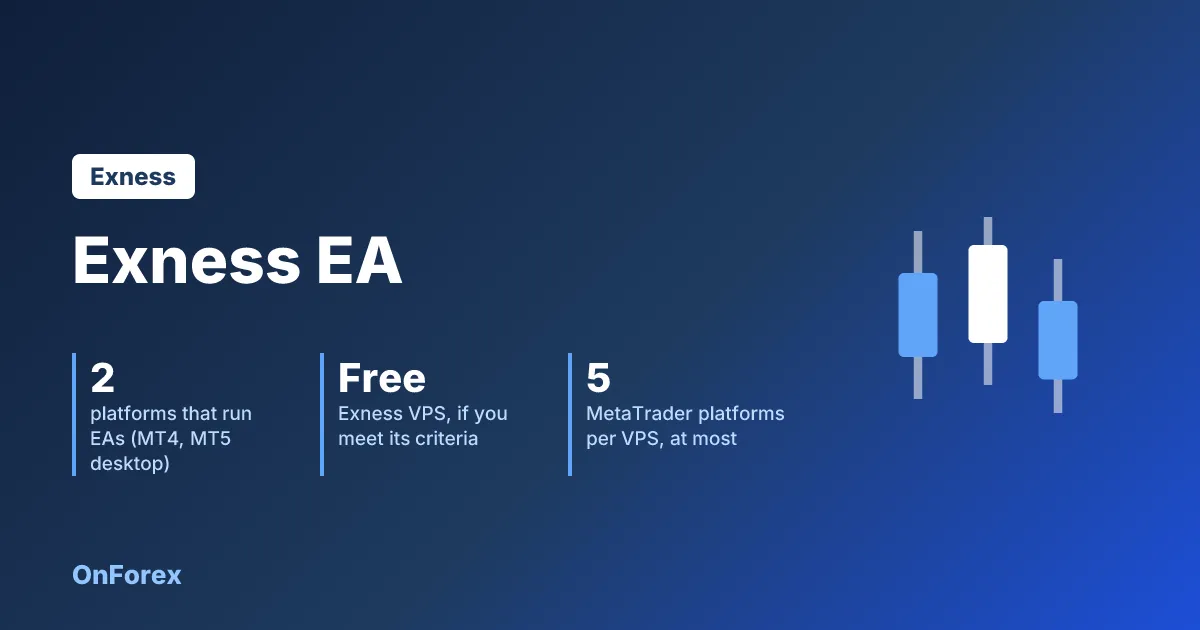
Yes, you can use an Expert Advisor (EA) on Exness, but only on the MetaTrader 4 or MetaTrader 5 desktop terminal. The Exness Help Center says EAs do not run on the mobile or web versions, and accounts built on the Exness platform (Exness Terminal and the Exness Trade app) cannot run EAs at all. To use one you need an MT4 or MT5 account, an EA written in the matching language (MQL4 for MT4, MQL5 for MT5) and a computer or VPS that stays switched on. An EA automates orders; it does not make a strategy profitable, and Exness does not sell or develop EAs for you: they come from third parties such as the MQL community, or from your own code.
Disclosure: OnForex earns a referral commission if you open an Exness account through our links.
Everything below comes from the Exness Help Center articles Using Expert Advisors (EA) (updated 16 Sep 2026), Are Expert Advisors (EA) available for mobile platforms?, Available trading platforms (updated 21 Oct 2026) and the VPS articles linked in each section, checked November 23, 2026.
Where do EAs work on Exness?
| Platform | Account type | EAs supported |
|---|---|---|
| MetaTrader 4 desktop (Windows, macOS, Linux) | MT4 account | Yes (MQL4) |
| MetaTrader 5 desktop (Windows, macOS, Linux) | MT5 account | Yes (MQL5) |
| MetaTrader 4 and MetaTrader 5 mobile | MT4 / MT5 account | No |
| MetaTrader WebTerminal | MT4 / MT5 account | No (automated trading is unavailable) |
| MetaTrader MultiTerminal (Windows) | MT4 account | No automated trading |
| Exness Terminal (web) | MT5 or Exness platform account | No |
| Exness Trade app | MT5 or Exness platform account | No |
An EA written for MT4 does not run on MT5, and the reverse. Exness says this is because the two use different languages, MQL4 and MQL5. Sources: the three Help Center articles above plus Exness platform-based trading accounts (updated 9 Nov 2026), which says EAs are only available on MT4 and MT5 accounts, and MultiTerminal: Trading guide. For a full platform comparison see Exness trading platforms and MT4 vs MT5.
How do you install an EA on Exness MT4 or MT5?
The Help Center gives two routes. The steps are the same idea on both platforms.
- Download the EA from the MQL Community, which Exness describes as MetaTrader's official source.
- Log in to your MT4 or MT5 desktop terminal with your Exness account. Open File, then Open Data Folder, and copy the EA file into MQL4 or MQL5, then Experts. Copy any library (.dll) or settings (.set) files to the matching folders.
- Restart the terminal. Open Tools, then Options, then Expert Advisors, and tick Allow algorithmic trading. Tick DLL imports or WebRequest permissions only if your EA requires them and you are sure of what it does.
- Attach it. In the Navigator window find the EA (on MT5, under Expert Advisors, then Advisors), drag it onto the chart of the instrument, set its inputs and click OK.
You can also install directly from the platform: open the Code Base tab, choose Expert Advisors, right-click an EA to download it and confirm adding it to a chart. To remove an EA, right-click the chart and choose Expert Advisors (MT4) or Expert List (MT5), then Remove. MetaTrader also installs sample EAs written by MetaQuotes, based on moving average and MACD strategies. MetaQuotes explains how the platform's algorithmic trading controls work in its own MT5 help (checked November 23, 2026).
Why is my Exness EA disabled?
Exness lists two causes: the trading account balance is below the minimum requirement, or the EA settings are too aggressive and overload the terminal with excessive or irrelevant requests. If an EA is disabled and you cannot enable it yourself, Exness asks you to open a ticket in the Support Hub.
How does the Exness VPS work for EAs?
A virtual private server (VPS) is a remote computer that stays online, so an EA keeps running when your own computer or internet connection is off. Exness offers a free VPS to clients who meet its criteria, and says you may also use your own VPS, although it cannot ensure the quality of that connection (About Exness VPS, updated 2 Oct 2026).
| Question | Exness Help Center answer |
|---|---|
| Is it free? | Yes, if you meet the criteria for account balance and/or trading volume |
| What are the criteria? | They differ and are shown in your Personal Area under Exness benefits, then Virtual Private Server. We do not quote amounts because Exness says to confirm them there |
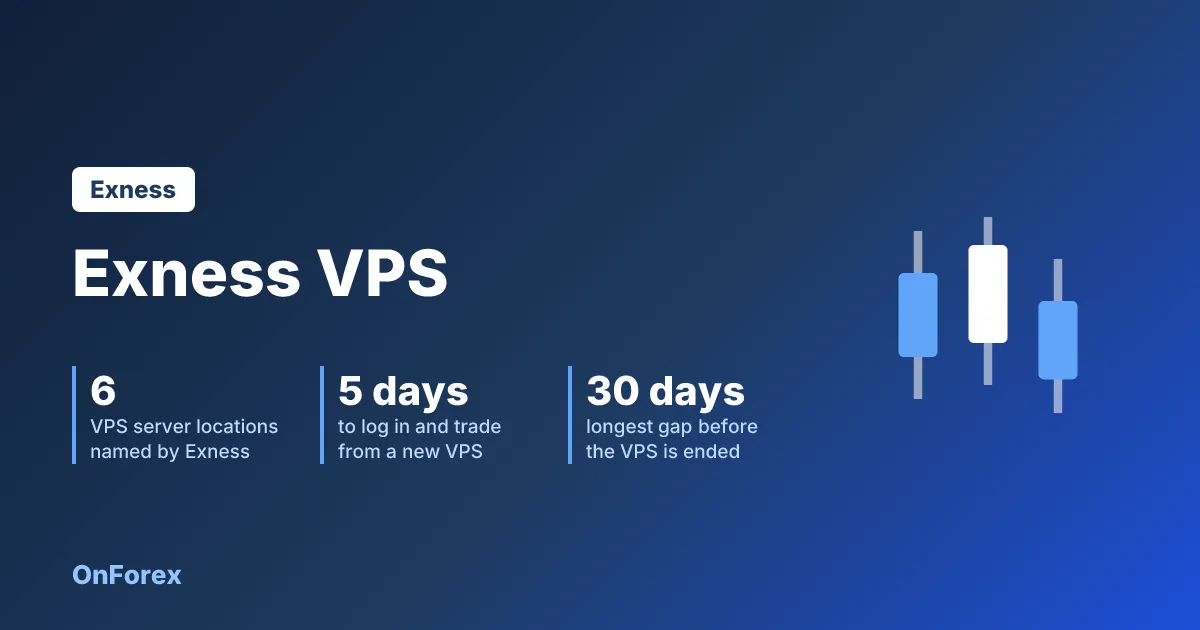
| Where are the servers? | Near Exness trading servers in Amsterdam, Dubai, Seoul, Singapore, Miami and Johannesburg |
| How many MetaTrader platforms? | A maximum of 5 for MT4 and MT5, chosen when you apply; one MultiTerminal is installed by default (How many platforms can I have on my VPS?) |
| How do I connect? | Remote Desktop on Windows or the equivalent on Mac, using the VPS address, login and password from your Personal Area |
How do you keep the Exness VPS?
According to the setup guide (updated 9 Oct 2026), you must keep meeting a trading volume over a 30, 90 or 180 day period (meeting one period is enough), trade from the VPS with the linked account within 5 days of getting access, and trade from it at least once every 30 days. Pending orders do not count. If you fall short, the VPS is terminated, and the Terms of Use say all VPS data is cleared and cannot be recovered.
The same Terms of Use say Exness monitors the uptime of the MetaTrader servers but not whether your terminal or EA is running correctly, and that Exness is not liable for losses from EAs installed on the VPS. Exness also advises closing open trades before Friday's market close when maintenance is scheduled, especially with EAs running.
Check the platforms and VPS conditions for your account
Continue to Exness to see which MT4 and MT5 account types and VPS criteria apply to you. Forex and CFD trading carries a high risk of loss.
Continue to ExnessForex and CFD trading involves significant risk. You may lose your invested capital.
Which Exness account type suits an EA?
The account pages describe execution, which affects how an EA's orders are filled:
| Account | Execution (Help Center) | Note for EAs |
|---|---|---|
| Standard | Market execution, no requotes | General-purpose account |
| Standard Cent | Market execution, no requotes | Cent lots; MT4 and MT5 |
| Raw Spread | Market execution, no requotes | Commission applies |
| Zero | Market execution | Described as suitable for the use of Expert Advisors |
| Pro | Instant execution, with requotes; market execution only if the account currency is USD, JPY, THB, CNY, IDR or VND | Requotes can reject an EA's order |
Sources: Standard account, Standard Cent account, Raw Spread account, Zero account, Pro account and Requotes, checked November 23, 2026. The Requotes article adds that on an MT4 Pro account you may still get requotes with market execution during high volatility. Compare costs in account types, Raw Spread and Zero.
Risks of running an EA
- Slippage and delays. In fast markets an order can fill at a different price from the one requested. Exness lists a stable connection, a VPS, correct EA settings and a maximum deviation setting as ways to reduce requotes, but none removes the risk. See slippage.
- Spreads can widen around news and at market open and close, which raises the cost of every automated order.
- No guarantee of profit. A past result from an EA seller, a back-test or a demo account does not predict live results. Check the strategy before use, as the Help Center advises, and read about AI trading bots and back-testing.
- Platform and connection faults can leave positions unmanaged. A VPS reduces the risk of your own computer failing but does not prevent losses.
- MetaTrader Trading Signals are not an Exness service. MetaTrader's Trading Signals feature is provided by MetaQuotes and Exness says it is not affiliated with it (MetaTrader: Trading signals).
Try any EA on a demo account first, and keep in mind that demo fills differ from live fills.
Frequently asked questions
Does Exness allow EAs?
Yes, on MT4 and MT5 desktop terminals. The Help Center recommends understanding an EA's strategy and doing due diligence before use.
Can I use an Exness EA on mobile?
No. Exness says mobile trading platforms do not support EAs. A VPS lets you run the EA remotely and monitor it from a phone through remote access.
Does Exness provide a free VPS?
Yes, for clients who meet the account balance and/or trading volume criteria shown in their Personal Area, and who keep meeting the retention rules.
Does Exness have its own trading bot?
No EA or bot product is listed in the Help Center articles above. EAs come from third parties or from your own code.
Can I run an EA on Exness Terminal?
No. Exness Terminal and the Exness Trade app do not support EAs; use an MT4 or MT5 account on desktop.
Related guides
- Exness VPS: conditions and setup
- Exness Trading Platforms: MT4, MT5, Terminal and Apps
- Exness MT4 Guide
- Exness MT5 Download
- Exness Download for PC: Web Terminal, MT5 or MT4
- MT4 vs MT5
- Exness Account Types
- Exness Demo Account
Risk warning: Forex and CFD trading carries a high risk of loss and is not suitable for everyone. Automated trading does not remove risk, and spreads, slippage and platform faults can cause losses. Conditions and the VPS criteria change; confirm them in your Personal Area. This article is general information, not investment advice.
Related Articles
Exness VPS: Free Requirements, Setup, Locations and Losing Access
Exness VPS explained from the Help Center, checked Nov 25, 2026: who qualifies, the lot-volume maths, how to apply and connect, how access is kept or lost, and when you need one.
Exness Server Time: GMT+0 Chart Clock, DST and Swap Times by Time Zone
Exness server time is GMT+0 and does not change with daylight saving; what moves is the schedule. Local-time table for 11 time zones and a swap-time example, checked Nov 25, 2026.
Exness Trading Platforms: MT4, MT5, Terminal and App Compared
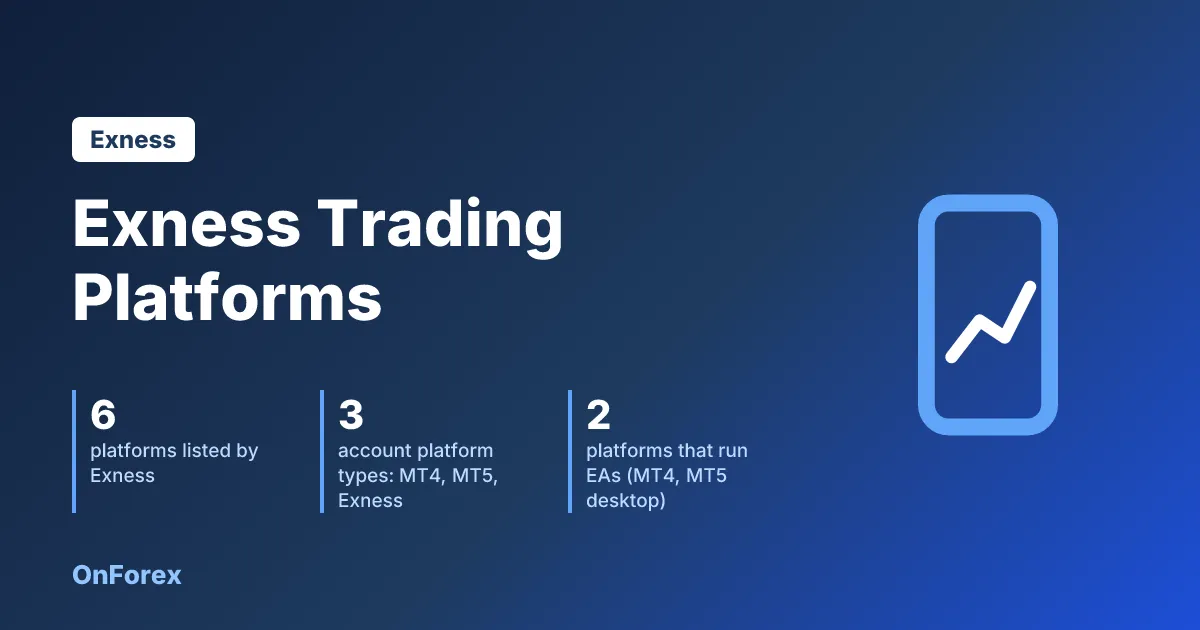
Exness trading platforms compared: MT4, MT5, Exness Terminal, Exness Trade app, WebTerminal and MultiTerminal. Devices, account types, EA support and which to use.
MT4 vs MT5 2026: Which Platform Should You Use?
MT4 vs MT5 compared in full. Features, indicators, order types, EA compatibility, and the key question: should you switch to MT5 in 2026? Complete guide.
Exness Login & MT5 Login: Personal Area, MT4, App
Exness login: the Personal Area takes your email, MT5 takes account number, trading password and server. Which login fits the app, terminal or web, plus fixes.
Exness MT5 Download for PC (Windows & Mac), Mobile and Web
Exness MT5 download for PC: Windows or Mac installer, then log in with your login and server. Also Android, iOS, APK and web terminal options. Checked November 16, 2026.